Get PlayTime as an app
PlayTime can sit on your home screen with its own icon and open like an app, with no browser bar around it. It is the same website — there is nothing to download from an app store, and it takes no space worth worrying about.
One tap. Your browser will ask you to confirm.
Why install?
- It opens from your home screen instead of you having to find the address.
- It fills the whole screen, so there is more room for the charts.
- On an iPhone or iPad it is the only way notifications can work. Apple only allows a website to send notifications once it has been added to the home screen.
Three ways to do it, one per kind of device. Open the one you are on — we open it for you where we can tell.
On an iPhone or iPad
This has to be done in Safari. Other browsers on an iPhone cannot add it. Each picture below shows what to tap, with a red arrow on it.
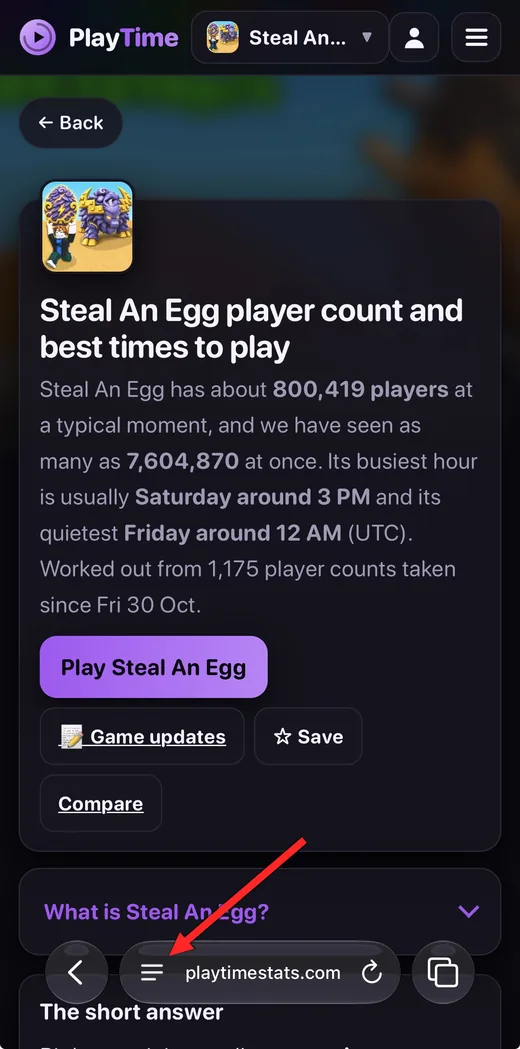
Open PlayTime in Safari and tap the three lines at the left-hand end of the address bar, at the bottom of the screen.
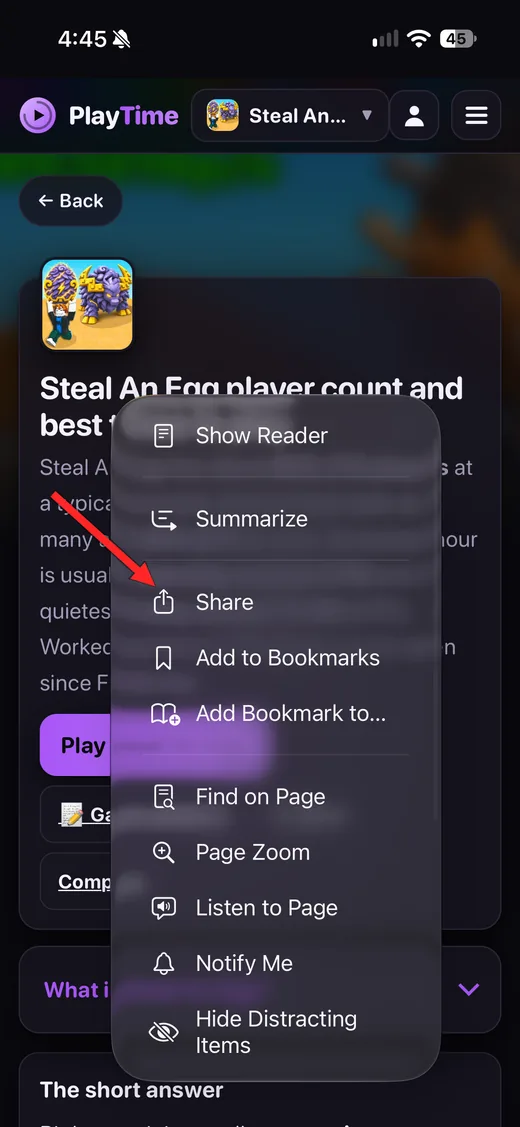
Tap Share.
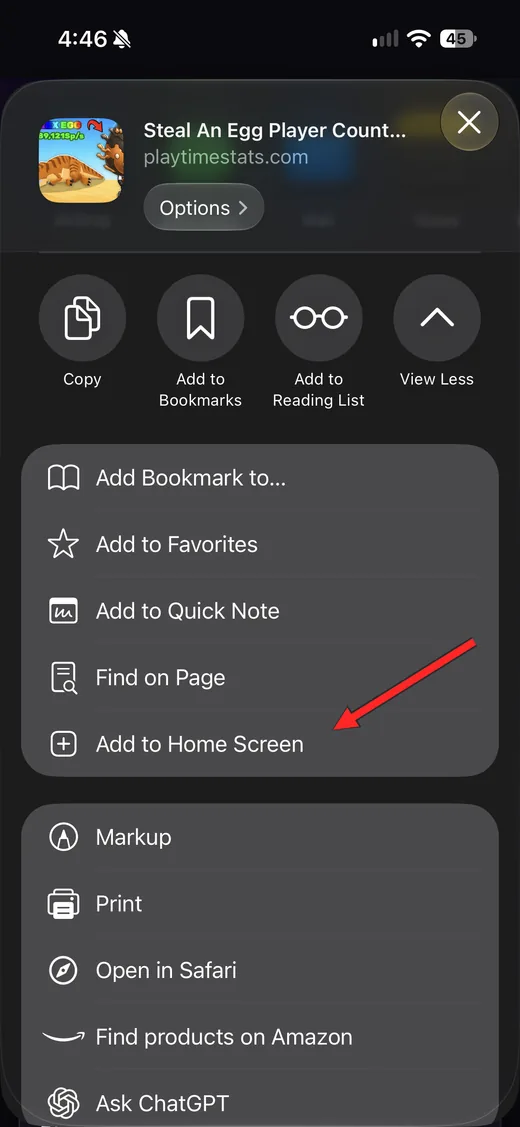
Scroll down the list and tap Add to Home Screen.
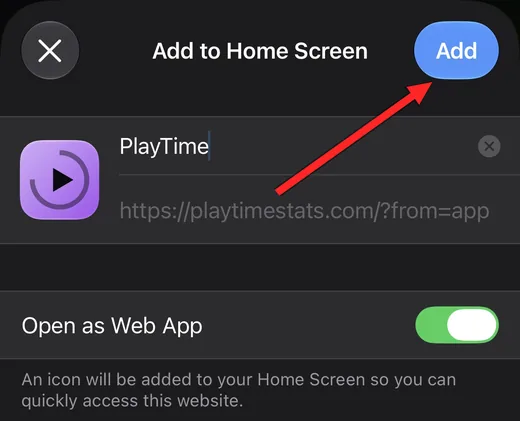
Tap Add in the top right. Leave Open as Web App switched on — that is the part that makes notifications work.
The icon appears on your home screen. Open PlayTime from there from now on, and the notification button on any game page will work.
On an Android phone
- Open PlayTime in Chrome.
- Tap the menu button — three lines or three dots, depending on your browser.
- Tap Add to Home screen, or Install app if that is what it says.
- Confirm.
On a computer
Adding it
Open PlayTime in your browser.
Click the small install icon at the right-hand end of the address bar — a little screen with an arrow in it.
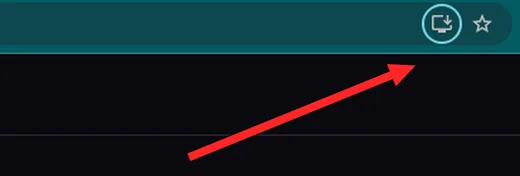
Choose Next, then Install.
That icon only appears in Chrome and Edge. Firefox on a computer cannot add a website this way, but notifications still work in it.
Turning notifications on
On a computer you do not have to add PlayTime first — notifications work in an ordinary browser tab. The first time you press a bell, your browser asks.
Press Allow when the box appears.
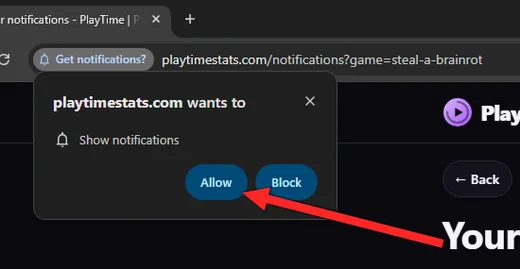
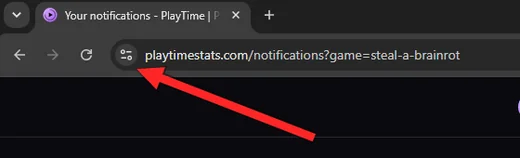
Missed it, or pressed Block by mistake? Click the small icon just to the left of the address.
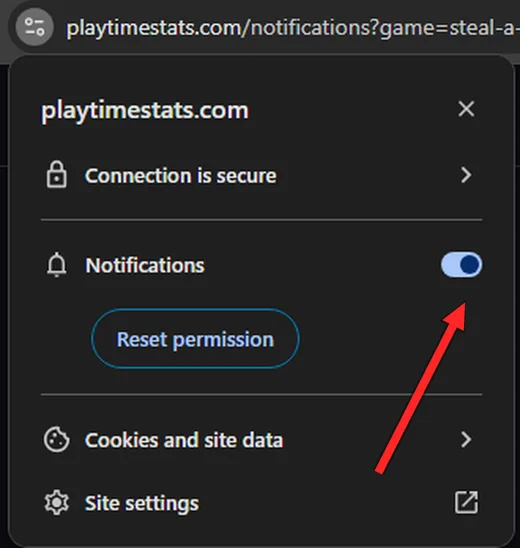
Turn Notifications on. If it offers Reset permission instead, click that, reload the page and press the bell again.
If they still do not appear
Windows has a switch of its own on top of the browser's, and that is usually the one in the way.
- Open Settings, then System, then Notifications.
- Turn Notifications on.
- Check that Do not disturb is off.
- Scroll down to the list of apps underneath and turn on the one for your browser — Google Chrome, Microsoft Edge, Firefox, whichever you opened PlayTime in.
On a Mac the same two switches are in System Settings, then Notifications.
Getting rid of it
Hold the icon and remove it, the same as any other app. Nothing is left behind on your device, and nothing about you is kept here — see our Privacy Policy.